Settings
Settings can be used to control the size of the screen, margins, background image, saving options and more.
How to control the settings
The settings can be controled by a toml config file.
Selection of the config file
When the package starts it searches for a config file, in the following order:
local file, a config file located in the same folder as the python program that is using the package. Must be named casioplot_config.toml.
global file, a config file located in the folder
~/.config/casioplot, there may be multiple global config files, in that case the first in alphabetical order will be picked.default.toml, a config file stored in the package, a preset file.
You must create the folder ~/.config/casioplot first to use global config files.
Available presets
The package comes with 4 preset files, default.toml, fx-CG50.toml, fx-CG50_AU.toml and graph_90+e.toml.
fx-CG50, fx-CG50_AU and graph_90+e have the exact same settings, the only reasson they are three instead of one is for better user experience.
Presets shoudn’t be modified by the user.
default.toml:

Calculator presets:
Config file hierarchy
Keep in mind this hierarchy that the package uses to search for config files, . This can be tought as the order of most custom config file to the lest custom.
Default to file
A config file may have the key default_to, this key is used to indicate
a default to file. If a settings is missing from a config file and that same settings
is set in the default to file that setting will be set to the value of the default to file.
A config file must only have as default file a config file less custom then tham. So a local
file can have a global or a preset, but a global can only have a preset file as default file.
A local config file may specify a global one that specifies a preset, creating a chain. Image that there are only 4 settings, a chain could work like this:
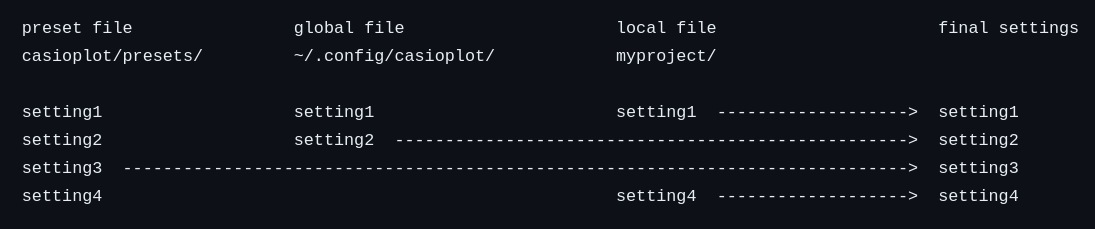
We strongly recommend you to set default_to to a preset file in your config file. This will ensure that all the settings are set, so you don’t get any errors when running your programs.
default_to key
To specify a default to file you can use the following syntax:
- global file: global/file_name
- preset file: presets/file_name
You must include the .toml file extension.
So, for example, to specify your global file named my_global_config1.toml do the following:
# myproject/casioplot_config.toml
default_to = "global/my_global_config1.toml"
Or to specify the preset fx-CG50.toml file:
# ~/.config/casioplot/my_global_config1.toml
default_to = "presets/fx-CG50.toml"
If you were to create this two file and run a program in the myproject/ directory
it would have the settings of fx-CG50.toml.
If default_to is set to "" or isn’t set there will be no default to file.
If you set default_to to "" on a global file, you need to make sure that
all settings are set at least once.
Available settings
These are the content of default.toml
Set the size of the canvas where you are able to draw.
Should not be used if bg_image_is_set is true,
since it will be automatically set to the size of the background image
minus the margins.
[canvas]
width = 400
height = 200
Set the size of the margin around the canvas. Useful if your background image has a border.
[margins]
left_margin = 5
right_margin = 5
top_margin = 5
bottom_margin = 5
Set the background image.
If bg_image_is_set is set to false, the background image is ignored
You can select where you image is in the following way:
Use image_name to select local images.
Use global/image_name to select global images.
Use bg_images/image_name to select preset images.
Include the extencion in the name.
[background]
bg_image_is_set = false
# use this image if you don't want to have a background image and not use a default file
background_image = "bg_images/blanck.png"
Show the screen with tkinter.
[showing_screen]
show_screen = true
# Close the window at exit.
close_window = true
Save the screen in the current directory.
If save_multiple is set to false, the screen will be saved at each
show_screen() call, overwriting the previous save,
the file name will be image_name.image_format.
If save_multiple is set to true, the screen will be saved every time
show_screen() is called save_rate times,
and file name will be image_namenumber.image_format
where number is the number of the save.
[saving_screen]
save_screen = false
image_name = "casioplot"
image_format = "png"
save_multiple = false
# be careful, with save_rate = 1 you can easily generate tens of thousand of images in a few seconds
save_rate = 1
The Casio calculators don’t have the same precision for colors as the computer
the option correct_colors makes the set_pixel() function correct the colors
to match what would happen in the calculators
[colors]
correct_colors = false
It could also be helpful to see fx-CG50.toml. It looks like this: