Settings
Settings are used to configure the output image to match your calculator screen or to change the output image format, for example. There are a lot of settings available. This allows you to customize the output image to your needs.
How to set a setting
To set a setting, or use a preset, you must place the setting in a toml file. The file
must be named casioplot_config.toml and must be placed in the directory
where the script is executed. You can also set global settings to all your projects by
placing a toml file in the ~/.config/casioplot/ directory.
Available settings
# This is the default configuration file, if no config file is specified,
# the package uses this file for settings

# This file doesn't coutain the attribute `default_to` because it is not necessary
# since there isn't any file to default to, this is defaultiest file!
# Note that default_to = "" would have the same efect.
# Every config file can do this, but must have a value for every setting, even the
# ones that aren't going to be used.

# In any config file it is possible to specify a default file in the following way:
# - 'global/<file_name>' if it is the global config file.
# - 'presets/<file_name>' if it is one of the preset files.
# It is necessary to put the .toml extencion.
#
# A config file can only specify files less "custom" that them,
# following the following order of "customness" (more custom first) local > global > presets.

# Set the size of the canvas where you are able to draw.
# Should not be used if `bg_image_is_set` is true,
# since it will be automatically set to the size of the background image
# minus the margins.
[canvas]
width = 400
height = 200

# Set the size of the margin around the canvas.
# Useful if your background image has a border.
[margins]
left_margin = 5
right_margin = 5
top_margin = 5
bottom_margin = 5

# Set the background image.
# If `bg_image_is_set` is set to false, the background image is ignored
# You can select where you image is in the following way:
# Use `<image_name>` to select local images.
# Use `global/<image_name>` to select global images.
# Use `bg_images/<image_name>` to select preset images.
# Include the extension in the name.
[background]
bg_image_is_set = false
# use this image if you don't want to have a background image and not use a default file
background_image = "bg_images/blanck.png"

# Show the screen with tkinter.
[showing_screen]
show_screen = true

# Save the screen in the current directory.
# If `save_multiple` is set to false, the screen will be saved at each
# `show_screen` call, overwriting the previous save,
# the file name will be `image_name` + '.' + `image_format`.
# If `save_multiple` is set to true, the screen will be saved every time
# `show_screen` is called `save_rate` times,
# and file name will be `image_name` + number + '.' + `image_format`
# where number is the number of the save.
[saving_screen]
save_screen = false
image_name = "casioplot"
image_format = "png"
save_multiple = false
save_rate = 1
Presets
You can use a preset by specifying the path of the preset in the
default_to key in the toml file. If you want to use a global preset,
you need to prefix the path with global/. If you want to use a preset
that we made, you need to prefix the path with preset/.
Here is a example of how to use a preset:
default_to = "preset/fx-CG50.toml"

# enable saving the screen
[saving_screen]
save_screen = true
This will use the preset for the CASIO fx-CG50 calculator,
which mean all the settings will be inherited from this file.
However, the save_screen setting will be set to true
in order to save an image of the screen.
By default, no preset is loaded. You can load a preset by setting
the default_to key in the toml file, without any other settings
to use any preset.
Default preset
We strongly recommend to include the default preset in your toml file, at least if you are not using any other preset. This will ensure that all the settings are set to the default values, and that you get no errors when running the script.
default_to = "preset/default.toml"
Default settings for the calculator fx-CG50, fx-CG50 AU and Graph 90+e
This will set the width and height of the calculator screen and will add the head of the screen (where power states are displayed on the calculator).
fx-CG50
default_to = "preset/fx-CG50.toml"
fx-CG50 AU
default_to = "preset/fx-CG50_AU.toml"
Graph 90+e
default_to = "preset/graph_90+e.toml"
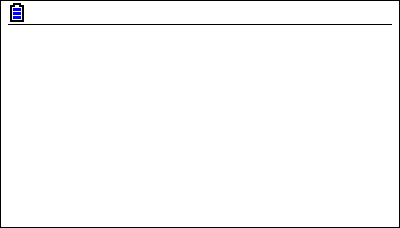
The blank screen will look like, for all of theses presets: